Single Sign-On - SFDC to Netsuite - single sign on in salesforce

Salesforce Configuration
- Login to Salesforce
- Go to Setup → Security Controls → Identity Provider
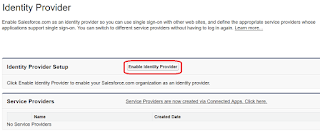
- Select “Create a new certificate…”

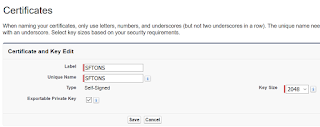
- Provide Certificate Label and Unique Name and Click on “Save”.
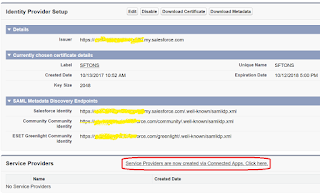
- Click on “Enable Identity Provider” and Select “SFTONS” certificate and click on “Save”.
- Setup Service provider. Click on “Service Providers are now created via Connected Apps. Click here.”
- Enter following information and click on “Save”.

- 1. Issuer
- 1.1. Setup → Domain Management → My Domain
- 2. Entity Id – Follow below steps:
- 2.1. Login to Netsuite
- 2.2. Setup → Integration → SAML Single Sign-on
- 2.3. Click on Metadata XML
- 3. ACS URL – Follow below steps:
- 3.1. Login to Netsuite
- 3.2. Setup → Integration → SAML Single Sign-on
- 3.3. Click on Metadata XML

- After Save. Click on “Download Metadata”

Netsuite Configuration
- Login to Netsuite
- Go to Setup → Integration → SAML Single Sign-on
- Select metadata file which we have downloaded from Salesforce Configuration (Step 9).

- Click on “Submit”.
- Go to Setup → Integration → SAML Single Sign-on. Provide following information:
- a. LOGOUT LANDING PAGE
- b. IDENTITY PROVIDER LOGIN PAGE

Note: This information is from Step 9 of the Salesforce Configuration.
- Click on “Submit”.