Building a Production-Ready Lead Capture Form in Salesforce Marketing Cloud with Sales Cloud Integration
Building a Production-Ready Lead Capture Form in Salesforce Marketing Cloud with Sales Cloud Integration
In today’s digital world, businesses rely heavily on website forms to capture leads and customer information. But simply collecting data is not enough. The real value comes from integrating that data directly with your CRM system so sales and marketing teams can work together seamlessly.
In this blog, we’ll walk through how to build a production-ready lead capture form using Salesforce Marketing Cloud integrated with Sales Cloud.
The solution not only stores data inside Marketing Cloud but also checks whether the customer already exists in Salesforce and automatically creates a Lead if needed.
Business Requirement
The requirement sounds simple at first:
Create a form with:
- First Name
- Last Name
- Email Address
- Phone Number
- Save button
- Cancel button
However, the actual business logic behind the form is much more important.
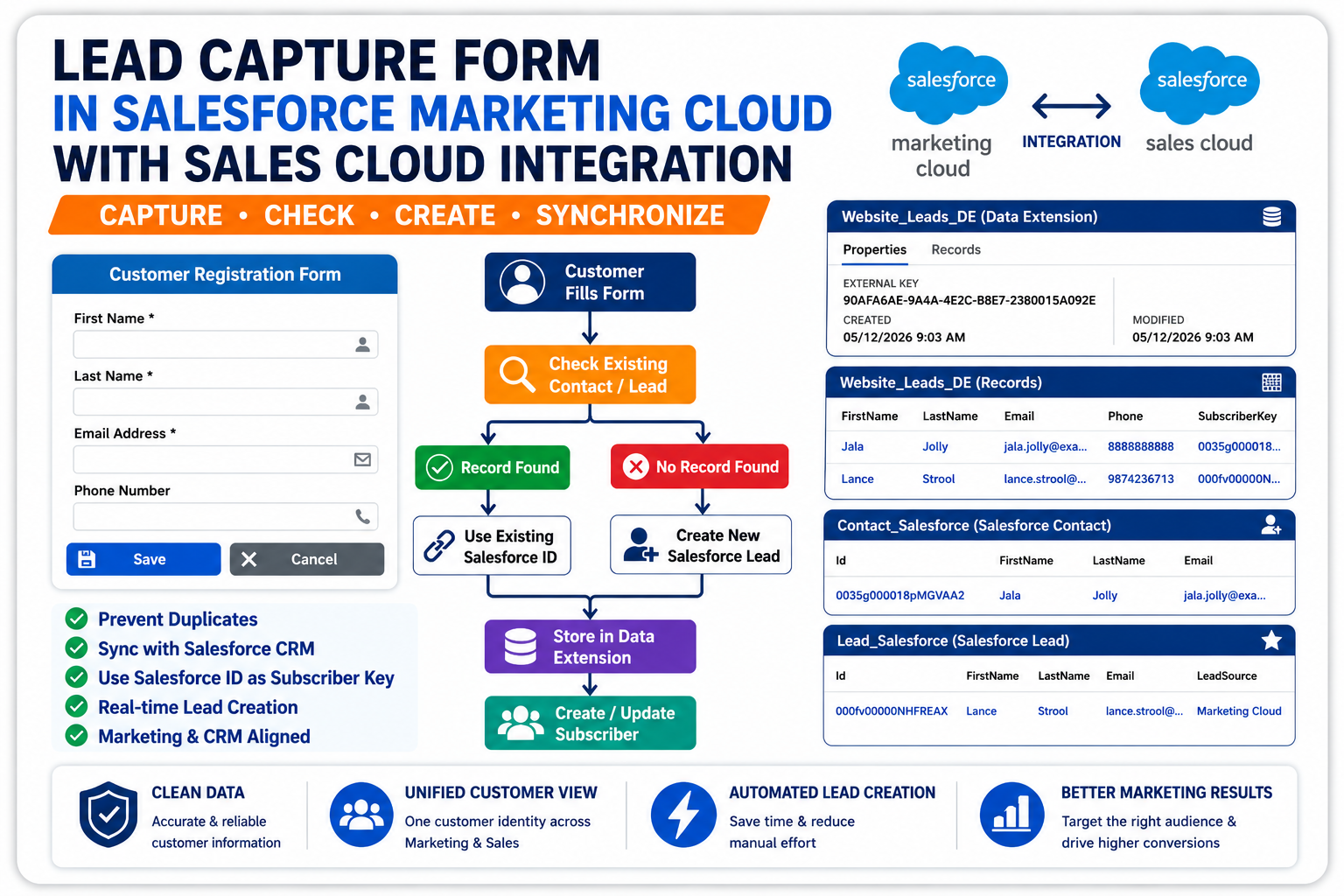
When a customer submits the form:
- Store the data inside a Marketing Cloud Data Extension
- Check whether the Email Address already exists in Salesforce
- Search both:
- Contact Object
- Lead Object
- If a record already exists:
- Fetch the Salesforce Record ID
- If no record exists:
- Create a new Lead in Salesforce
- Use the Salesforce Record ID as the Subscriber Key in Marketing Cloud
Why This Integration Matters
In many organizations:
- Marketing teams use Marketing Cloud
- Sales teams use Sales Cloud
If these systems are not connected properly, businesses often face:
- Duplicate leads
- Inconsistent customer data
- Poor reporting
- Broken customer journeys
This integration solves those challenges by maintaining a unified customer identity across systems.
Solution Architecture
Marketing Cloud Components Used
| Technology | Purpose |
|---|---|
| CloudPages | Hosting the form |
| AMPscript | Server-side processing |
| Data Extensions | Data storage |
| Marketing Cloud Connect | CRM integration |
| RetrieveSalesforceObjects() | Search Salesforce records |
| CreateSalesforceObject() | Create new Lead |
| Subscriber Object API | Create subscriber |
| Inline CSS | Form styling |
Data Extension Setup
The form submissions are stored inside a Data Extension called:
Website_Leads_DE
| Field Name | Data Type |
|---|---|
| FirstName | Text |
| LastName | Text |
| EmailAddress | |
| Phone | Phone |
| SubscriberKey | Text |
| SalesforceId | Text |
| CreatedDate | Date |
Why Use Salesforce Record ID as Subscriber Key?
One of the most important best practices in this implementation is using the Salesforce Record ID as the Subscriber Key.
Example:
003XXXXXXXXXXXX
00QXXXXXXXXXXXX
Why is this important?
- Email addresses can change
- Salesforce IDs are permanent
- It avoids duplicate subscriber identities
- It improves CRM synchronization
Building the CloudPage Form
The form itself is hosted on a CloudPage and built using:
- HTML
- AMPscript
- Inline CSS
The form includes:
- Responsive layout
- Input validation
- Save and Cancel buttons
- Proper spacing and styling
We also used inline CSS because it provides more reliable rendering inside Marketing Cloud environments.
Server-Side Validation
Before processing any data, validation is extremely important.
The solution validates:
- Required fields
- Empty values
- Email format
We also:
- Trim extra spaces
- Convert emails to lowercase
These small improvements help maintain cleaner customer data.
Checking Existing Salesforce Records
Now comes the most important part — Salesforce CRM integration.
We use the AMPscript function:
RetrieveSalesforceObjects()
Step 1 — Check Contact Object
Search Salesforce Contacts using Email Address.
If Contact exists:
- Fetch Contact ID
- Use it as Subscriber Key
Step 2 — Check Lead Object
If Contact does not exist:
- Search Lead Object
- Fetch Lead ID
- Use it as Subscriber Key
This prevents duplicate Lead creation in Salesforce.
Creating a New Lead Automatically
If no Contact or Lead exists, the system automatically creates a new Lead using:
CreateSalesforceObject()
The Lead includes:
- First Name
- Last Name
- Phone
- Company
- Lead Source
- Status
Once Salesforce creates the Lead:
- The newly generated Lead ID is returned
- That ID becomes the Subscriber Key
This creates a seamless CRM integration process.
Storing Data in Marketing Cloud
After Salesforce processing is completed, the record is stored inside the Data Extension using:
UpsertDE()
Why use Upsert instead of Insert?
- It avoids duplicate records
- It updates existing records when necessary
- It is safer for production environments
Creating the Subscriber
The final step is creating or updating the subscriber inside Marketing Cloud.
This makes the customer available for:
- Journey Builder
- Email campaigns
- Automation Studio
- Audience segmentation
Again, the Subscriber Key used is:
- Salesforce Record ID
This keeps both systems aligned.
👉 Check out our Implementation Services
👉 Salesforce Development Services
Final Outcome
- Existing Salesforce records are reused
- New Leads are created automatically when needed
- Data is stored in Marketing Cloud
- Subscriber records are created
- CRM and Marketing systems stay synchronized
This creates a clean and scalable lead management process.
HTML Code for the Form: Lead Capture Form
You can access the complete production-ready Salesforce Marketing Cloud Lead Capture Form source code using the link below: